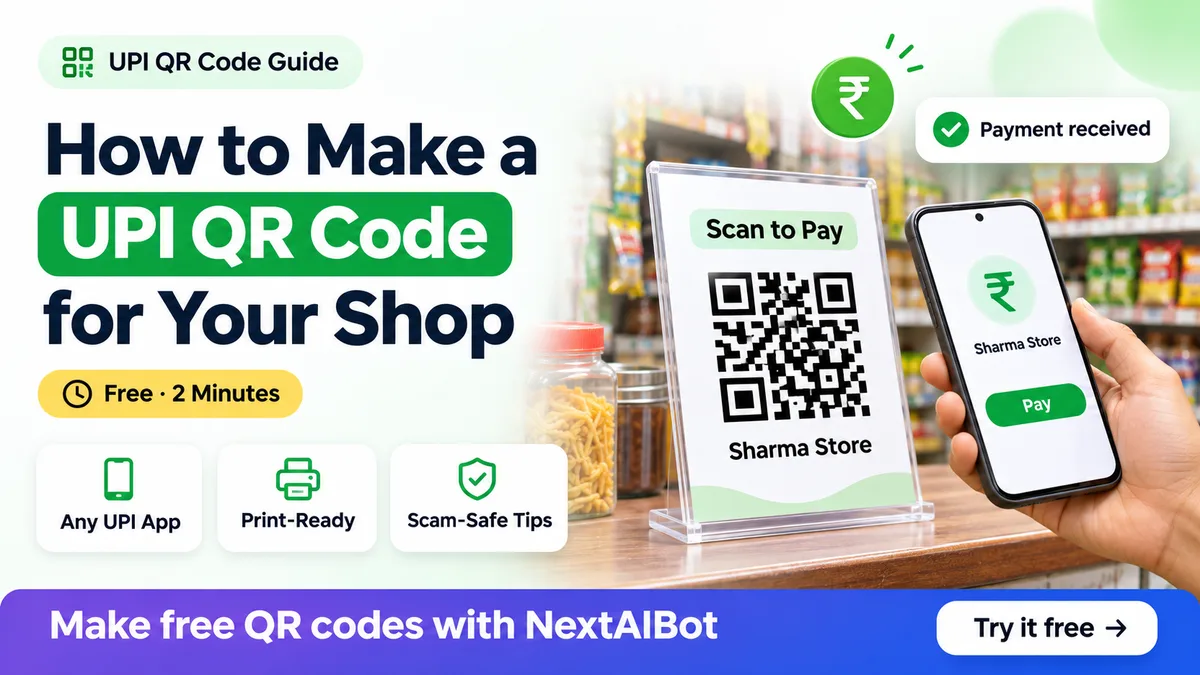
How to Make a UPI QR Code for Your Shop (Free, in 2 Minutes)
Create a free UPI payment QR code with your UPI ID, an optional fixed amount and a note. Plus print tips and how to protect your shop from QR payment scams.

6 min read


In this article10 sections
- What is a UPI QR code?
- What you need before you start
- How to create a UPI QR code for free
- Fixed amount or open amount?
- Test it before you print
- Printing tips so it scans every time
- Where to use your UPI QR code
- Protect your shop from QR payment scams
- Make other QR codes while you're there
- Send payment links automatically
Most customers in India now expect to pay by scanning a QR code. If your counter, delivery bag or invoice doesn't have one, you're making payment harder than it needs to be, and you may be losing sales to "I don't have cash."
This guide shows you how to create a UPI QR code for free in about two minutes, when to add a fixed amount, how to print it so it scans every time, and how to protect your shop from common QR payment scams.
What is a UPI QR code?#
A UPI QR code is a scannable code that holds your payment details. When a customer scans it with any UPI app, such as Google Pay, PhonePe, Paytm or their bank's app, the app opens a payment screen with your name already filled in. The customer enters the amount (or sees it pre-filled), enters their UPI PIN, and the money goes to your bank account.
Behind the scenes, the code contains a link in a standard format like this:
upi://pay?pa=sharmastore@okhdfcbank&pn=Sharma%20Store&cu=INR
pais your UPI ID (payee address)pnis the name shown to the customer (payee name)amis an optional fixed amountcuis the currency, INRtnis an optional note, like an order number
You don't need to type any of this yourself. A generator builds it for you.
What you need before you start#
- Your UPI ID. It looks like
yourname@okhdfcbankor9876543210@ybl. You'll find it in the profile or settings section of your UPI app. - The name customers should see. Use your shop or business name, so customers know they're paying the right place.
If you receive a lot of business payments, consider a merchant or business account from your bank or payment app. They usually come with features like payment alerts, settlement reports and a sound box, and they keep business money separate from personal transfers.
How to create a UPI QR code for free#
- Open our free QR Code Generator and choose UPI payment.
- Enter your UPI ID and payee name.
- Leave amount blank for a counter QR, or add one for a fixed-price item (more on this below).
- Add a note if you like, such as "Table 4" or "Order 128".
- Optionally change the colours under Customise, but keep a dark code on a light background.
- Download PNG for WhatsApp, Instagram or your website, or SVG for printing.
The code is created in your browser, so your UPI ID isn't uploaded anywhere.
Fixed amount or open amount?#
Leave the amount blank for your shop counter, menu or visiting card. Customers type the amount they owe, so one code works for every bill.
Add a fixed amount when the price never changes, for example:
- A ₹499 consultation or class fee
- An event ticket or registration fee
- A specific product listed on a flyer or Instagram post
- An invoice you send on WhatsApp
A fixed amount saves the customer a step and avoids typing mistakes. Just remember to make a new code if the price changes.
Test it before you print#
This step is important. Before you display the code anywhere:
- Scan it with your phone and check that your name appears on the payment screen.
- Make a ₹1 test payment and confirm it reaches your bank account.
- If you added a fixed amount or note, check that both show up correctly.
It takes one minute and saves you from printing hundreds of stickers with a typo in the UPI ID.
Printing tips so it scans every time#
- Size: at least 2 × 2 cm, and bigger (around 10 cm or more) for a counter stand that people scan from a distance.
- Contrast: a dark code on a white or light background. Avoid light colours, gradients and photos behind the code.
- Margin: leave the white border around the code. Cropping it can stop phones from reading it.
- Label it clearly: add your shop name and a line like "Scan to pay with any UPI app", plus your UPI ID in text as a backup.
- Protect it: laminate counter codes or use a stand, so they don't fade, tear or get wet.
Where to use your UPI QR code#
- Billing counter and checkout desk
- Restaurant tables and menus
- Delivery bags, packaging and printed invoices
- Visiting cards and flyers
- WhatsApp messages and payment reminders (see our payment reminder templates)
- Your website's checkout or contact page
- Stalls at events and exhibitions
Protect your shop from QR payment scams#
QR payments are safe when used correctly, but a few scams are common. Share these tips with your staff:
- Check your QR code regularly. Some fraudsters paste their own QR sticker over a shop's code, so payments go to them. Look at your printed codes every day, and keep them where staff can see them.
- Confirm payments in your own bank or UPI app. Never accept a payment screenshot alone as proof. Screenshots are easy to fake. Wait for the payment alert or check your account.
- You never scan a QR code to receive money. Scanning a QR code is only for paying. If someone sends you a QR code and says "scan this to receive your refund or payment," it's a scam.
- Never share your UPI PIN with anyone, including people claiming to be from a bank or payment app.
Make other QR codes while you're there#
The same free tool can also create QR codes for your Wi-Fi network, your WhatsApp number, your Google review link, your website and a digital contact card. A Wi-Fi code on the table and a review code at the counter work very well alongside your UPI code. Here's how to get more Google reviews the right way.
Send payment links automatically#
A QR code is perfect for customers standing in front of you. For customers who order or book over WhatsApp, the next step is sending payment details and reminders automatically. With NextAIBot's WhatsApp automation, you can send order confirmations, payment links and polite reminders on schedule, and see every customer conversation in one inbox.
Quick recap: find your UPI ID, create the code with a free generator, leave the amount open for the counter or fix it for set prices, test with ₹1, print it large with good contrast, check it daily for tampering, and always confirm payments in your own app.
Found this useful? Share it.
Written by
NextAIBot Team
NextAIBot builds WhatsApp, Instagram and Google Business automation for growing businesses. Our team writes practical, step-by-step guides on customer messaging, reviews and lead follow-up.