How to Set Up Greeting and Away Messages in WhatsApp Business
Step-by-step setup for WhatsApp Business greeting messages, away messages and quick replies, with message examples you can copy.

4 min read


In this article7 sections
When a new customer messages you on WhatsApp, the first reply sets the tone. If they wait hours for an answer, they may message a competitor instead. The free WhatsApp Business app has three built-in tools that help: greeting messages, away messages and quick replies.
This guide shows how to set up each one and what to write.
Before you start#
These features are part of the WhatsApp Business app, not the regular WhatsApp app. If you're still using regular WhatsApp for your business, you can switch to WhatsApp Business on the same number.
In the app, you'll find them under Settings → Business tools (the exact menu names can vary slightly between Android and iPhone and between app versions).
1. Greeting message#
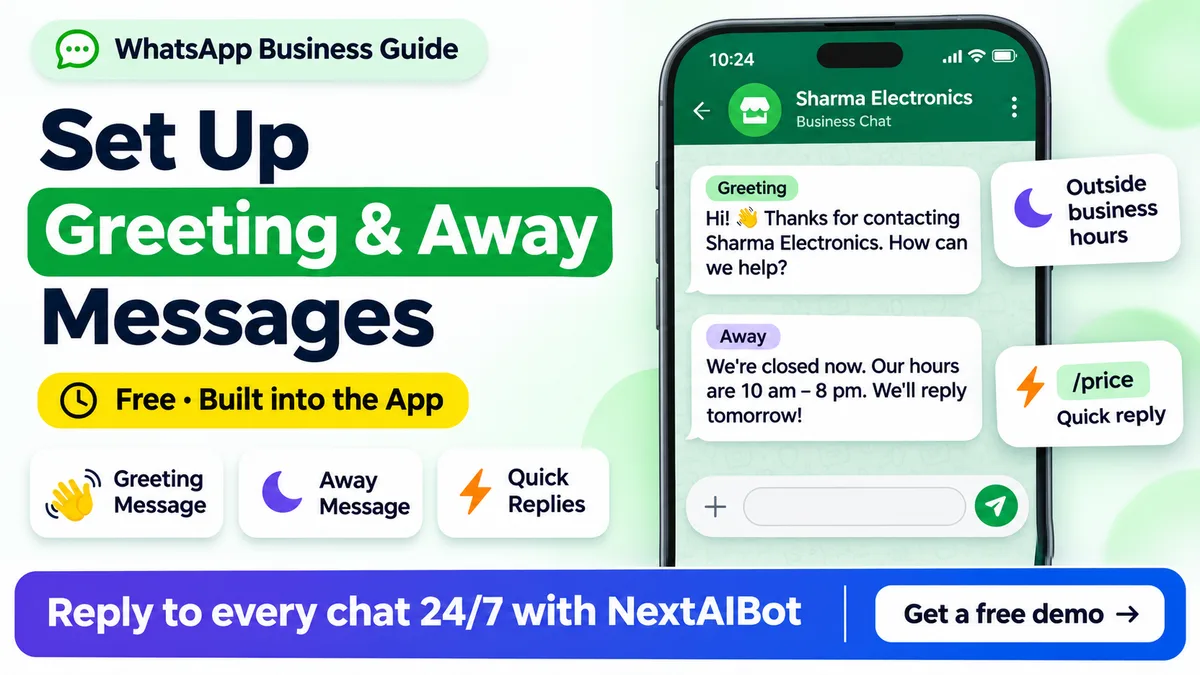
A greeting message is sent automatically when a customer messages you for the first time, or after 14 days without messages.
How to set it up:
- Open WhatsApp Business and go to Settings → Business tools.
- Tap Greeting message and turn on Send greeting message.
- Write your message and choose who receives it (everyone, people not in your address book, or a custom list).
- Save.
What to write: welcome them, say what you can help with, and tell them what happens next.
Hi! 👋 Thanks for contacting Sharma Electronics.
We can help with product prices, stock and repairs. Please tell us what you're looking for and a team member will reply shortly.
Example (clinic):
Hello and welcome to City Dental Care. 🦷
To book an appointment, please share your name, preferred date and time. For emergencies, call 98765 43210.
2. Away message#
An away message is sent automatically when customers message you outside the hours you set, or when you mark yourself as away.
How to set it up:
- Go to Settings → Business tools → Away message.
- Turn on Send away message and write your message.
- Under Schedule, choose Always send, Custom schedule or Outside of business hours (this uses the hours from your business profile).
- Choose recipients and save.
What to write: say you're closed, when you'll reply, and offer a useful next step.
Thanks for your message! We're closed right now. Our hours are 10 am – 8 pm, Monday to Saturday.
We'll reply first thing tomorrow. Meanwhile, you can see our prices here: [link]
Hi! We're away for the Diwali holidays until 4 Nov. We'll get back to you as soon as we return. Wishing you and your family a happy Diwali! 🪔
3. Quick replies#
Quick replies are saved answers you can insert by typing / and a shortcut. They're ideal for questions you answer many times a day.
How to set it up:
- Go to Settings → Business tools → Quick replies.
- Tap Add, type the message, and give it a shortcut such as
/priceor/location. - In any chat, type
/to see and send your quick replies.
Useful quick replies:
/location– your address and Google Maps link/hours– your opening hours/price– your price list or catalogue link/payment– UPI ID and payment link/review– your Google review link (create one with our free review link generator)
Tips for better automated messages#
- Keep them short. Two to four lines is enough.
- Set expectations. Say when a person will reply.
- Give one clear next step, such as a link, a question to answer or a number to call.
- Use simple formatting. Bold your hours or phone number. Our WhatsApp Text Formatter shows a preview.
- Update them. Change your away message for holidays and special hours.
Get more customers to message you#
Greeting messages only help if people start a chat. Share a click-to-chat link on Instagram, Google and your website. Our free WhatsApp Link Generator creates the link and a QR code, and the WhatsApp chat button generator adds a floating button to your site.
When the app isn't enough#
Greeting and away messages send the same text to everyone. They can't answer questions, collect a customer's details or tell your team which chats are urgent.
With the WhatsApp Business API and NextAIBot, an AI assistant can actually answer common questions from your own business information, qualify leads, book appointments, and hand the chat to the right team member, around the clock and across multiple team members on one number.
Quick recap: turn on a greeting message for first-time chats, an away message for after hours, and quick replies for common questions. Keep each message short, set expectations and give one clear next step.
Found this useful? Share it.
Written by
NextAIBot Team
NextAIBot builds WhatsApp, Instagram and Google Business automation for growing businesses. Our team writes practical, step-by-step guides on customer messaging, reviews and lead follow-up.